The PT210D course is geared for professionals that are transitioning from traditional surround formats. Additionally, this course is well-suited for experienced Dolby mixers that are interested in deepening their skills and learning best practices. This course will thoroughly cover the essential tools and move on to comprehensive professional workflows.
The objectives of the course are:
- To introduce the benefits of object based audio
- To outline simple workflows for creating immersive audio in Pro Tools
- To teach Pro Tools users working in 5.1 surround sound to produce content in Dolby Atmos
Who Should Take This Course
This course is designed for:
- Professionals transitioning from traditional surround formats to Dolby Atmos
- Experienced Dolby Atmos mixers interested in deepening their skills and learning best practices.
- Students and professionals interested in Pro Tools Dolby official certification.
Learning Objectives
After completing this course, learners will be able to:
- bulletRecognize components of a Dolby Atmos content creation studio
- bulletOutline the Dolby Atmos content creation signal flow
- bulletUnderstand native Renderer configurations and associated workflows
- bulletConfigure Pro Tools for use in Dolby Atmos production
- bulletUse Pro Tools to work with Dolby Atmos beds and objects
- bulletImport and export ADM BWF Dolby Atmos content
Course Prerequisites
Completion of the following courses and passing of the associated certification exams:
- PT101 Pro Tools Fundamentals I
- PT110 Pro Tools Fundamentals II
- PT201 Pro Tools Production I
Additional Resources
The following resources are provided in support of the course content.
Glossary
Click below to open the Glossary in a separate tab that you can reference throughout the course.
Appendix A – Dolby Atmos Delivery Codecs
This appendix provided at the end of the course describes three codecs used to deliver Atmos content to the home: Dolby TrueHD, Dolby Digital Plus with Atmos Content, and Dolby AC-4 IMS (Immersive Stereo).
Appendix B – Dolby Atmos Content Delivery Signal Flow
This appendix provided at the end of the course describes the signal flow in two Dolby Atmos delivery modes: over the top (OTT) streaming delivery, and Blu-ray delivery of Dolby Atmos.
Beyond Multichannel Audio
Lesson 1 of 7
Before diving into the workflow, it is important to understand key Dolby Atmos concepts and how Dolby Atmos is delivered to consumers. This section introduces fundamental concepts such as audio beds, Object audio, different contexts for Dolby Atmos, and more.
Audio Beds
With traditional multichannel audio, channels correspond to specific speaker locations. If, for example, the mixer wants the sound to come from the Left Surround speakers, they bus or pan the audio to the left surround channel. If a mixer wants the audio to appear as though it is coming from between the Left Surround and Left speakers, they pan between the two to create a phantom image.
Traditional multichannel audio is utilized in Dolby Atmos; these channels are referred to as Bed audio. Bed configurations can range in width from Stereo to 7.1.2. The nomenclature is [ear-level channels].[LFE channels].[overhead channels] – For example, 7.1.2 denotes seven ear-level channels, one LFE (low frequency effects) channel, and left and right overhead channels.
Play Video
Bed audio can range in width from Stereo to 7.1.2.
Object Audio and Object Metadata
In addition to Bed audio, Dolby Atmos introduces the concept of Object audio (also referred to as audio Objects).
Object audio is not bussed or panned directly to (or between) channels. Instead, Object audio is paired with panning information recorded as X, Y, and Z coordinates (the Z-axis being elevation or height). These X, Y, and Z coordinates, along with Object size, are recorded along with the audio as Object Audio Metadata (OAMD). OAMD is dynamic and is updated with every panning move as the Dolby Atmos Renderer is synchronized with the digital audio workstation (DAW).
Play Video
Unlike bed audio (which is played out as normal channel-based audio) audio Objects are positioned in real-time, based on their Object Audio Metadata (OAMD). The speakers that are used in this positioning are based on the playback situation.
Rendering
The Dolby Atmos Renderer translates the mix created from Beds and the Objects with OAMD to real world speaker layouts that can in fact be configured a number of ways. In professional mixing, this can range from binaural audio over headphones to speaker layouts of 7.1.4 and beyond.
When using the Dolby Atmos Renderer during mixing and for Dolby Atmos Master File playback, an Object Audio Renderer (OAR) is used. The OAR “renders” the Bed to the available speakers and the Object audio to spatial coordinates supplied by the OAMD. This OAR “render” uses the available speaker configuration with a resolution beyond what is possible in a discrete channel-based system. The OAR is used during the creation of Dolby Atmos content, as well as playback of Dolby Atmos content for consumers.
The Dolby Atmos Renderer can record up to 128 channels, 10 of which are reserved for Bed audio. The remaining 118 channels can be used for addition Bed audio channels or for Object audio and associated Object Audio Metadata (OAMD).
The creation of a Dolby Atmos Master File is discussed later in this course.
Re-renders
Re-renders allow projects to be mixed in Dolby Atmos without requiring separate mixes for legacy deliverables in 5.1, stereo, etc. Re-renders can be created from full mixes, beds, objects, or from user-customized groups defined in the Renderer input configuration. Re-renders can contain the full mix or can be customized and derived from input groupings.
If a mixer is required to generate channel-based stems from a Dolby Atmos mix that are used to prepare audio for non-Dolby Atmos delivery (for example a 5.1 Music and Effects stem and a separate 5.1 Dialog stem), the mixer must selectively mute tracks in the DAW and perform multiple mastering passes.
Single and Multiple Bed Workflows
The first 10 inputs of the Dolby Atmos Renderer are reserved for Bed inputs. The remaining 118 inputs to the Renderer can be sued for either Bed audio or Object audio.
Bed tracks can be summed/combined to create a single composite Bed that is output from the DAW and feeds Renderer inputs 1-10, leaving the rest of the Renderer inputs available for Object audio.
If a mixer is required to generate channel-based stems from a Dolby Atmos mix that are used to prepare audio for non-Dolby Atmos delivery (for example, a 5.1 Music and Effects stem and a separate 5.1 Dialog stem), the mixer must selectively mute tracks in the DAW and perform multiple mastering passes.
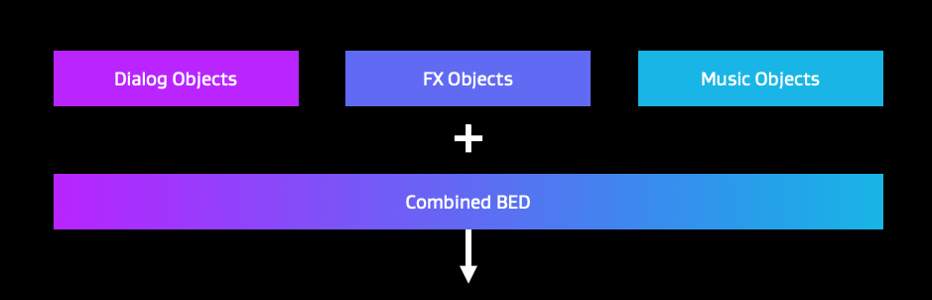
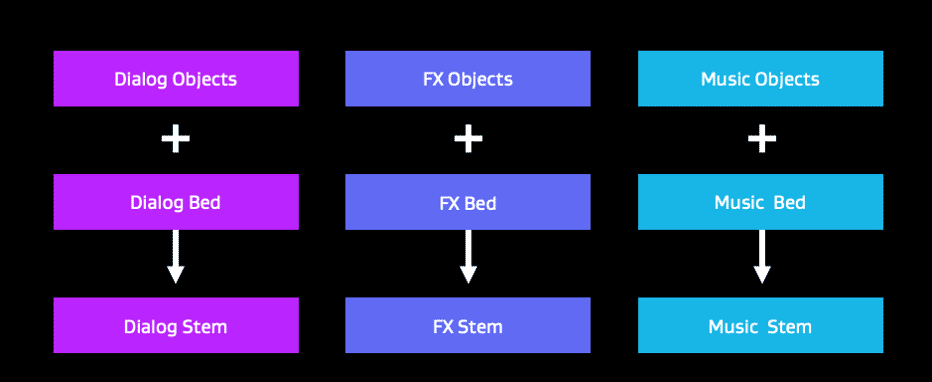
Another approach is to use a Multiple Bed Workflow. Within the DAW, mixers often group similar audio together in stems. In post-production work, the stems typically include Dialog, Music, and Effects. Other types of stems might include, Narration, Foley, etc. In music production, stems could include Drums, Guitars, Keyboards, Vocals, etc. In this workflow, each stem has a dedicated Bed in the Dolby Atmos mix, each with dedicated outputs from the DAW and corresponding inputs to the Renderer.
Within the Renderer, the Bed and Objects for a given stem can be grouped so that it is possible to generate channel-based stems without the need to mute tracks in the DAW or perform multiple passes. This can be a huge time-saver. The tradeoff is that this leaves fewer Renderer inputs available for Object audio.
This approach is also essential for workflows with multiple DAWs each working on a specific stem, where each DAW is assigned a set of Renderer inputs for its stem Bed and Objects.
The use of a Multiple Bed Workflow along with Re-renders is part of the Master Once/Deliver Everywhere premise of Dolby Atmos. Starting a mix in Dolby Atmos ensures universal compatibility by providing for the delivery of assets that are not in Dolby Atmos format. The use of different downmix modes and trims allows for great flexibility to ensure that channel-based deliverables sound as good as or better than a bespoke channel-based mix.
Digital Cinema and Home Installations
Lesson 2 of 7
Digital Cinema
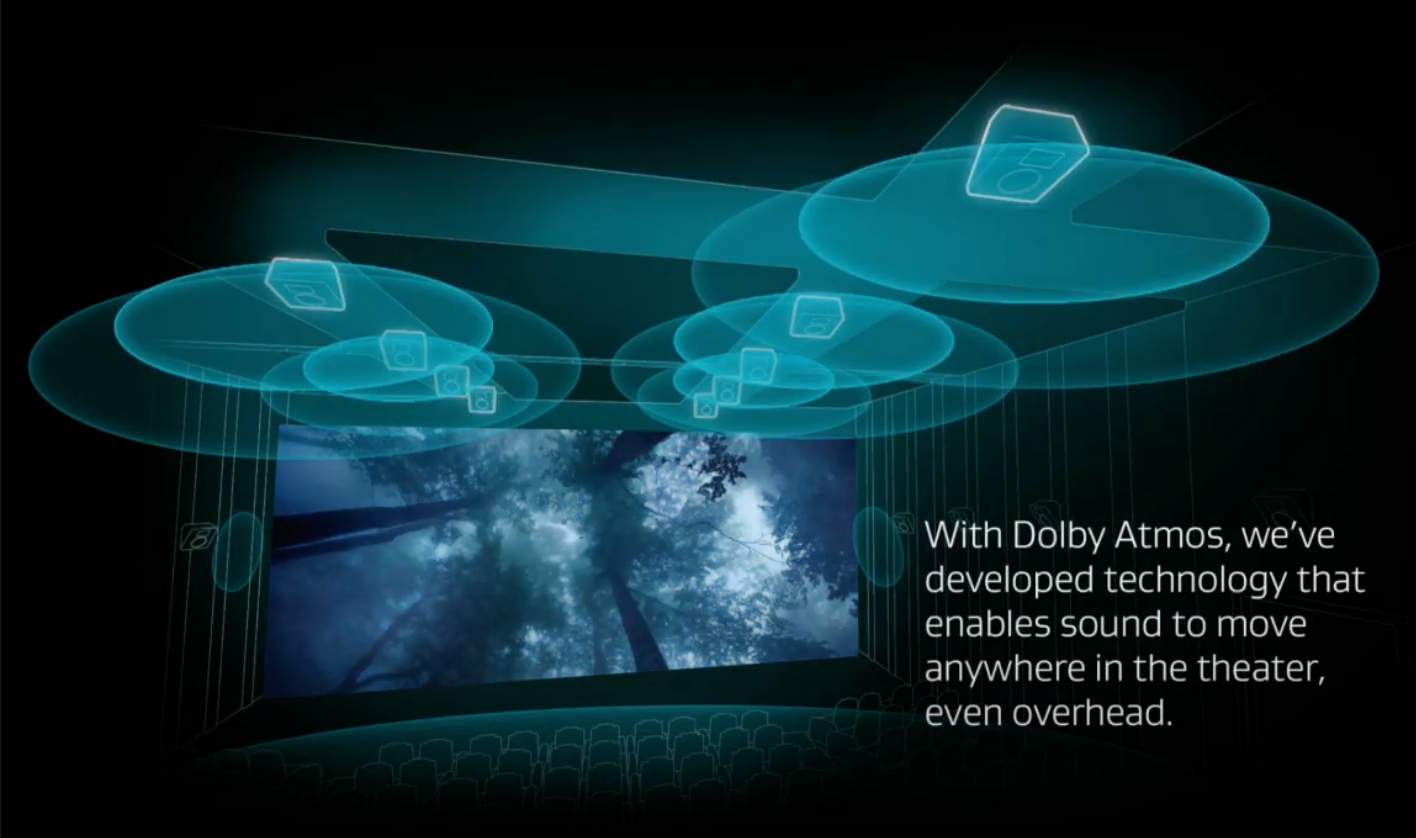
In the theater, the Dolby Atmos master is played back from a Digital Cinema Package off a Digital Cinema Server. Up to 128 tracks and OAMD are used by the OAR in the Dolby Cinema Processor to render Bed and Object audio for to up to 64 discrete speakers. This creates a very full immersive audio experience for movie viewers.
Home Installations
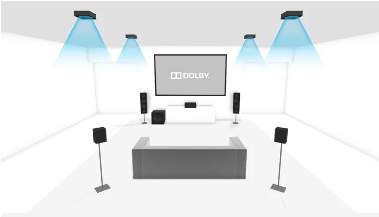
For the listener at home, consumer devices can range from virtualized Dolby Atmos on phones/tablets using speakers or headphones, to TV speakers, soundbars, and discreet speaker systems using overhead or upward firing speakers. Consumer speaker system layouts range typically from 5.1.2 to 9.1.6 and beyond.
Spatial Coding for Home Playback
Due to bandwidth constraints with over-the-top (OTT) streaming delivery and file size restrictions on Blu-ray, it is not practical to deliver the full Dolby Atmos master of up to 128 tracks and OAMD to the home listener. Nor is it practical for the OAR in consumer equipment to have the processing power required for a full Atmos presentation.
To deliver Dolby Atmos to the home, Spatial Coding is utilized to reduce bit rate, file size, and complexity while preserving the artistic intent of the original mix and providing a full home immersive audio experience.
Spatial coding provides a way to reduce a full Dolby Atmos presentation to a more reduced data set.
Spatial coding reduces the Dolby Atmos presentation, from up to 128 tracks (with OAMD for up to 118 Objects) to 2, 14, or 16 elements and OAMD.
Spatial coding is the first step in preparing a Dolby Atmos mix for home delivery.
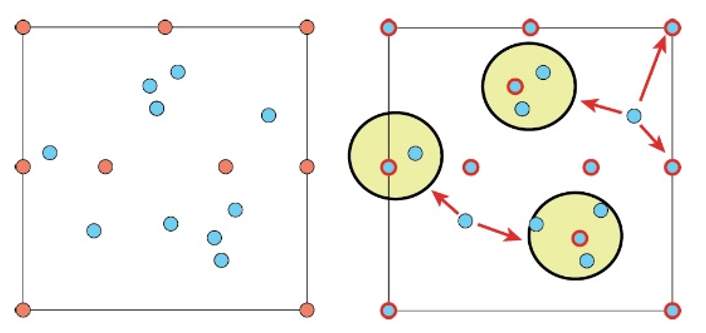
Spatial coding is a process that dynamically groups nearby audio from Beds and Objects using loudness and positional algorithms into “elements” (sometimes called clusters) that contain their own OAMD. The elements themselves can move over time, and the Bed and Object audio can move between elements to more accurately reflect their position and trajectory. The image to the left is a graphical representation of the spatial coding process.
While there may be up to 128 tracks in a Dolby Atmos presentation, the tracks are rarely all active at the same time. Even with complex and frenetic mixes, the dynamic elements produced by the spatial coding process provide the spatial resolution for the OAR to recreate an immersive soundfield. With the reference mix speaker configuration of 7.1.4 and common home theater speaker configurations up to 9.1.6 and beyond, the spatial coding process is transparent for most content.
Spatial Coding Emulation
The spatial coding process takes place as part of the encoding process, downstream from post-production. While spatial coding is most often transparent, it can be audible with some content, depending on the number of elements used.
Spatial Coding Emulation is a feature of the Dolby Atmos Renderer that allows the mixer to audition what spatial coding sounds like prior to the encoding process. As spatial coding is part of the delivery of Atmos to the home, it is important that the mixer be satisfied with the results and make adjustments to the mix if needed. Spatial coding emulation doesn’t need to be on during initial sound design and editing, but it should be turned on as the mix comes together.
Spatial coding can be emulated with 12, 14, or 16 elements. It is important to understand the final delivery method(s) in order to monitor appropriately, as the number of elements that can be included will vary depending on the codec and bit rate.
Note that spatial coding is not used in binaural rendering.
In order to reduce data size while preserving quality, delivery codecs are utilized. See Appendix A for a more in-depth discussion of Dolby codecs used for the delivery of Dolby Atmos to consumers.
Components of a Dolby Atmos Content Creation Studio
Lesson 3 of 7
Digital Audio Workstation
A DAW (Digital Audio Workstation) is the creative platform for immersive audio and is the source for Bed and Object audio, OAMD, and Longitudinal Time Code (LTC) for the Dolby Atmos Renderer.
A number of DAW platforms work with the Dolby Atmos Renderer. For the purposes of this course, we will be discussing using the Dolby Atmos Renderer with Avid Pro Tools Studio and Pro Tools Ultimate.
It is recommended that the DAW be able to pass 128 tracks of audio to the Dolby Atmos Renderer. While 128 inputs to the Dolby Atmos Renderer are not required to create compelling content, having this capacity does guarantee the flexibility needed and the ability to move projects between DAWs and studios.
Other considerations include the need for high-speed storage. Although this is a general requirement for high track-count projects, storage speed and capacity need extra attention for internal Renderer workflows and if Re-renders are to be recorded to the same workstation.
Dedicated control surfaces are another option that should be considered. While some mixers work well with a mouse, a dedicated control surface can provide even greater efficiency when working with immersive audio. A wide variety of solutions exist at various price points, especially for use with Pro Tools.
Dolby Atmos Renderer
The Dolby Atmos Renderer is the keystone of any Dolby Atmos system, receiving input from the DAW and outputting to the various monitoring formats.
Different Configurations of the Dolby Atmos Renderer
The Dolby Atmos Renderer software can be run in a variety of way:
- bulletInternally on the same workstation as the DAW
- bulletExternally on a dedicated Rendering and Mastering Workstation (RMW)
- bulletNatively using a Renderer built into select DAWs
For the purposes of this course, we will focus on internal renderer use. External rendering setups and workflows are discussed in the PT210D course.
Core Functions of the Dolby Atmos Renderer
The Dolby Atmos Renderer performs nine core functions:
- bulletRecords Bed/Object audio and object metadata to a Master File set synchronized to LTC.
- bulletIncludes Downmix/Trim metadata for Dolby Digital Plus JOC encoding and Binaural metadata for encoding and monitoring in Master Files.
- bulletExports Master Files to different mezzanine formats: ADM BWF (.wav) and IMF IAB (.mxf), full length or topped/tailed.
- bulletExports Master Files to .mp4 for quality control (QC) checks on consumer playback devices.
- bulletPerforms real-time and offline loudness measurements based on 5.1 Re-render, and exports summary or detailed log.
- bulletMonitors a Dolby Atmos mix or Master File rendered to the attached Dolby Atmos speaker configuration with or without spatial coding emulation.
- bulletMonitors Re-rendered downmixes: 7.1, 5.1, and Stereo (or custom, e.g., 5.1.2).
- bulletMonitors stereo or binaural Re-renders to headphones.
- bulletCreates real-time Re-renders or offline exports of Re-renders. These can be full mixes or stems if multiple bed inputs are used and custom groups have been defined.
System Clocking and Synchronization
A stable system clock is essential to prevent the Dolby Atmos Renderer from dropping out of record due to discrepancies between LTC and sample position. Configurations can vary based on the system configuration.
For studios using the Dolby Atmos Renderer running on the same workstation as Pro Tools, a dedicated master system clock may not be necessary, depending on the interfaces and configuration being used.
The Dolby Atmos Renderer chases LTC from Pro Tools. The LTC source can be a synchronization device with an LTC generator, such as the Avid Sync HD, Pro Tools Sync | X or the supplied Dolby LTC Generator plug-in.
For studios with the Dolby Atmos Renderer running on a dedicated RMW, a master system clock (MC) is required and likely already in place. This should be a Word Clock (WC) generator with distributed outputs to the Pro Tools interfaces and Renderer hardware.
For Dante systems, a single device locked to Word Clock should be used if the network is not clocked to a Precision Time Protocol (PTP) clock using the same source.
TIP: Daisy-chaining (meaning connecting Word Clock through multiple devices rather than distribution directly from the source) should be avoided.
The latency value between audio and LTC varies depending on the Renderer and hardware configuration. Presets are available in the Renderer for each use case, and the latency value can be adjusted in the Dolby Atmos Renderer software.
Monitoring for Dolby Atmos
When mixing in Dolby Atmos, a 7.1.4 reference speaker layout is recommended:
- Seven ear-level speakers:
- Front Left
- Front Center
- Front Right
- Side Left
- Side Right
- Back Left
- Back Right
- One Low Frequency Effects (LFE) speaker
- Four Overhead-mounted speakers
- Left Top Front
- Right Top Front
- Left Top Rear
- Right Top Rear
The four height speakers should mounted overhead, as upward-firing consumer speakers are not suitable in acoustically treated studio environments.
Extended speaker layouts such as 9.1.4 and 9.1.6 or higher are also possible, as well as the use of speaker arrays.
Attenuation and speaker mute and solo functions can be achieved in the Dolby Atmos Renderer. However, dedicated 7.1.4 capable monitor control systems are recommended, as they provide greater control and will add full B-Chain functionality and source switching if needed.
Speaker placement, calibration, and tuning are covered in separate documentation.
Video Playback
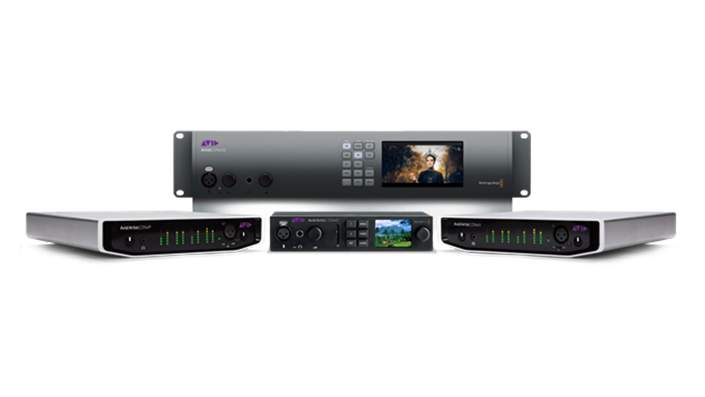
Video playback from Pro Tools via a dedicated interface is required for most post-production work. Many PCIe or Thunderbolt options are available.
Dolby Atmos Content Creation Signal Flow
Lesson 4 of 7
The illustration below shows the signal flow for audio, metadata, timecode, configuration files and logs to and from the systems required for Dolby Atmos content creation.
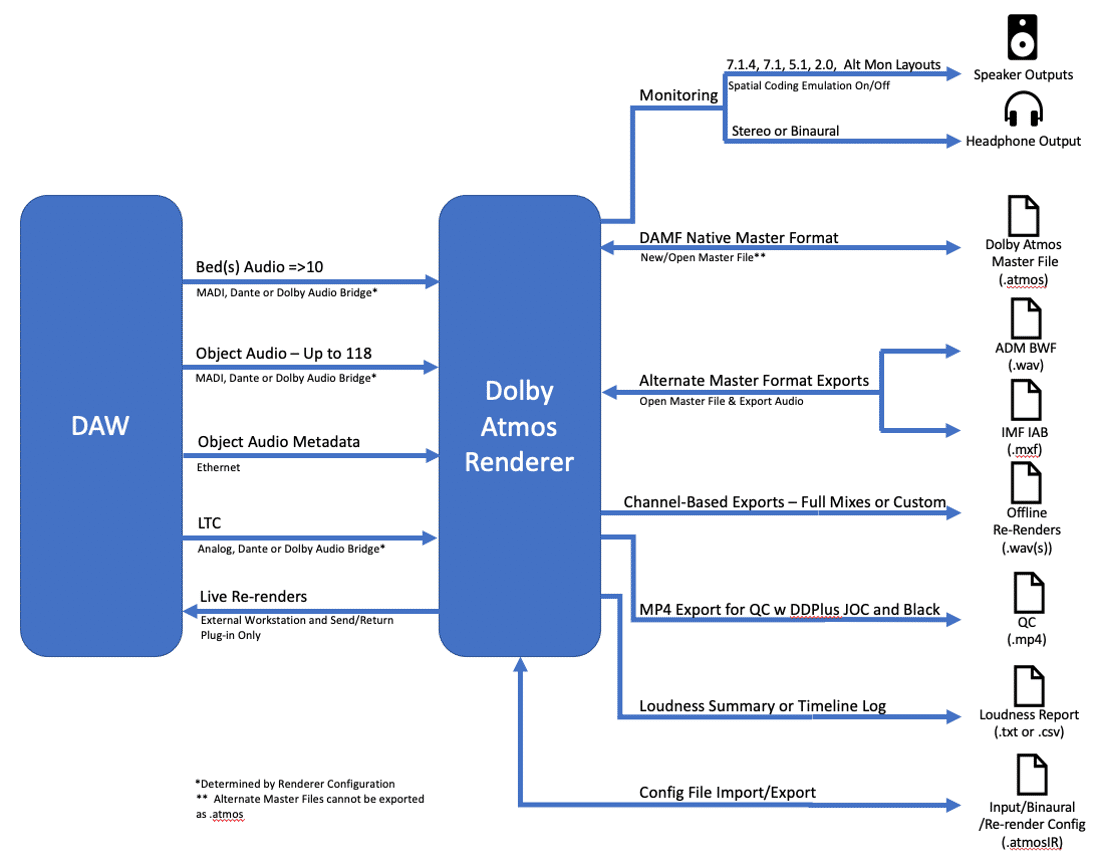
TIP: You can refer to the glossary for explanations of some of the acronyms and terminology shown here.
Dolby Atmos Master Formats
Lesson 5 of 7
The Dolby Atmos Renderer records up to 128 inputs comprised of Bed and Object audio, OAMD as well as Binaural, Downmix, and Trim metadata, Input and Re-render configurations.
These are recorded to a Dolby Atmos Master File set (DAMF). This is the format native to the Dolby Atmos Renderer and is recorded as a three-file set comprised of:
- bullet.atmos — An XML file containing information about the Dolby Atmos presentation and index information about the other files in the file set. The .atmos file includes the number of inputs used as Beds or Objects, frame rate, file start, first frame of action, the number of elements used in spatial coding, downmix, and trim metadata.
- bullet.atmos.metadata — An XML file containing dynamic positional and size OAMD for each Object, along with binaural metadata settings.
- bullet.atmos.audio — A Core Audio Format (CAF) file of up to 128 tracks of interleaved audio
The .atmos and .atmos.metadata files can be opened for inspection with a text editor. However, direct editing of these files is not recommended, as the file set can become corrupted.
While a new master is always recorded as a DAMF, two other formats are used for distribution, for encoding, or further editing:
- ADM BWF is a single file instead of three files in a folder, making it easy to interchange with other facilities.
- ADM BWF can be imported into the DAW. This allows all Bed and Object audio tracks to be recreated along with all the panning metadata. This allows for subsequent editing — language replacement, timing conformance, censorship edits, etc. — prior to remastering.
- ADM BWF can be encoded to Dolby True HD, Dolby Digital Plus JOC, and Dolby AC-4 IMS and is the primary deliverable to streaming operators and Blu-ray authoring.
- bulletIMF.IAB – Immersive Audio Bitstream is a mezzanine format for IMF (interoperability mastering format). IAB is considered a mezzanine format rather than a master format, as OAMD is quantized. IAB.mxf is used by third-party IMF packaging tools to create a delivery container for both Dolby Atmos and video (including Dolby Vision)
While the Dolby Atmos Renderer natively records in the .atmos format only, it can convert to and export ADM BWF and IAB.MXF. The entire file can be exported, or basic top/tail (specified range) edits can be performed.
The Dolby Atmos Renderer can also open ADM BWF and IAB.MXF files as master files for playback, QC, basic top/tail editing, conversion (between the two formats), and re-export. However, some restrictions apply with open ADM BWF and IAB.MXF. Punch-in and other metadata editing are not permitted with ADM BWF and IAB.MXF. Conversion to .atmos from ADM BWF and IAB.MXF is not permitted.
The Dolby Atmos Conversion Tool (DACT) is a companion application to the Dolby Atmos Renderer and is required to convert from ADM BWF and IAB.MXF to .atmos, perform format and frame-rate conversions, as well as perform complex editing operations on master files. The Dolby Atmos Conversion Tool is a free utility.
Technical Delivery Specifications
The deliverables required by streaming services are spelled out in technical delivery specifications. These vary in terms of loudness and peak target, the number and format of master files and channel-based deliverables, as well as naming conventions and more. Some specifications ask for DAW sessions along with ADM BWF for archival purposes. Being aware of the deliverables required is crucial to achieving an efficient workflow.
Internal Renderer Overview
Lesson 1 of 4
The Dolby Atmos Renderer licensed as the Dolby Atmos Production Suite is designed to run on the same Mac as the DAW (such as Pro Tools). This configuration is intended for use in offline editorial, sound design/composition, offline Re-renders, and Master File QC situations rather than mixing. However, it is capable of mixing content that is not highly complex if installed on a Mac with a powerful CPU and appropriately configured storage. There are benefits and tradeoffs of running the Dolby Atmos Renderer internally compared to externally on a dedicated RMW.
Using the Dolby Atmos Renderer internally on the same workstation as the DAW is a less expensive option as a complete Dolby Atmos workstation is contained in one computer instead of two. However, there are limitations:
- bulletGeneral System Overhead. Running the DAW and Dolby Atmos Renderer concurrently can tax the CPU. This is especially true with complex content (i.e., high-track counts, very active panning automation, and a lot of plug-ins running natively). Storage configuration is also a factor as disc read/write speeds can be an issue.
- bulletThere is no external clock to WC or Video Reference for the Renderer.
- bulletThere is no speaker EQ functionality within the Renderer. This means that external hardware/software may be required for room tuning.
- bulletSupport for Speaker array mode is not available which can be a limiting factor in larger mix rooms. (This topic is discussed in more detail in a later section.)
- bulletOnly a single DAW can be used. This means that multiple premix workstations cannot be used in a stem-based multiple bed workflow.
- bulletThe Renderer Remote application cannot be used. This means the Renderer display and control cannot be run from a separate PC or Mac.
Dolby Atmos Production Suite licenses can be purchased directly from Avid. Three seats are also included with the Dolby Atmos Mastering Suite.
Software Components
Mac-based digital audio workstation with the following components:
- Dolby Atmos Renderer software installed and authorized with a Dolby Atmos Production Suite license
- Supported DAW software (such as Pro Tools) using one of the following:
- Dolby Renderer Send and Return plug-ins
- Dolby Audio Bridge (Core Audio Emulation)
- Templates for Avid Pro Tools Ultimate and Steinberg Nuendo as applicable
Daw/Renderer Communication
Object panning and size metadata is transmitted internally to the Renderer. The DAW establishes communication with the Renderer using localhost as the Renderer address.
With Pro Tools, two methods are available for audio I/O to the Dolby Atmos Renderer, as follows.
| Renderer Send/Return plug-ins The use of Send and Return plug-ins on aux tracks was the initial way the Dolby Atmos Renderer was used on the same Mac and is only available using Pro Tools. The Renderer Send/Return plug-ins are utilized via inserts on aux tracks to route audio and metadata to the Renderer. Send/Return plug-ins is selected as the driver in the Renderer UI which also sets the Send/Return plug-ins as the synchronization source. | |
|---|---|
| Pros | Cons |
| Allows Live (real-time) Re-renders | Does not support automatic delay compensation in Pro Tools |
| Allows HDX DSP processing, where applicable | Requires complicated bussing |
| Converting sessions from using the Production Suite to using the Renderer running externally as the Mastering Suite is cumbersome | |
| Dolby Audio Bridge A core audio emulation that provides 130 channels of DAW output to the Renderer inputs. This method is far easier to work with. It is also the only method available using DAWs other than Pro Tools. | |
|---|---|
| Pros | Cons |
| Allows for 130 Channels of output from Pro Tools Ultimate 2019.10 or later, Nuendo v8 or later, Blackmagic Resolve v16 or later, Merging Pyramix, Logic Pro, Ableton Live, and other DAWs | Has a one-way path to Renderer; Re-renders must be exported and imported into the DAW |
| Supports automatic delay compensation for plug-Ins in Pro Tools | Does not allow HDX DSP processing for plug-ins on a Pro Tools HDX system, since the Dolby Audio Bridge must be set as the Playback Engine |
| Allows synchronization via LTC | Does not allow the use of an Avid SYNC HD peripheral, as this device interfaces via a serial connection to either HDX or HD Native cards which will be inactive due to Dolby Audio Bridge being selected as the Playback Engine |
| Facilitates easier session and project compatibility with the Dolby Atmos Renderer running externally as only the playback engine/audio system needs to be changed | Has the potential for clocking issues with external hardware which may require the use of aggregate devices as a workaround |
| Allows any core audio hardware with outputs for 7.1.4 monitoring to be used | |
The Dolby Audio Bridge is utilized by selecting it as the Playback Engine in Pro Tools 2019.10 and later (or equivalent in other DAWs) and as the core audio input device in the Renderer preferences.
Note that the audio buffer size must be set to 1024 samples in the DAW when using the Dolby Audio Bridge.
If using the Dolby Audio Bridge with playback hardware that is externally clocked, you may need to use the Dolby Audio Bridge configured as an Aggregate Device in Audio MIDI Setup. Follow the link below to learn more.
Dolby Audio Bridge
Aggregate Device Setup
A Dolby Developer Knowledge Base articleGO TO KB ARTICLE
Synchronization Options and Configuration
When using the Dolby Audio Bridge, synchronization is via LTC over audio. The LTC source can be from the supplied Dolby LTC Generator v2.0 AAX plug-in for Pro Tools or another type of LTC Generator plug-in inserted on a mono audio track. Alternatively, a LTC audio file (.wav) can be placed on a mono audio track and spotted to the start time that matches the file. Typically, the track with either a LTC Generator plug-in or LTC audio file is bussed to output 129. In the Dolby Atmos Renderer, the External Sync Source set is to LTC over audio, and the input channel is specified accordingly.
By contrast, the Send/Return plug-ins use an internal synchronization mechanism.
Renderer Installer Components
Lesson 2 of 4
Installation of the Dolby Atmos Renderer involves the following steps, as described in this lesson:
- 11Install the Dolby Atmos Renderer (.dmg and .zip).
- 22Install Licenses for the Dolby Atmos Renderer.
Learners will also gain an understanding of installer components and other Atmos tools.
Dolby Atmos Renderer Installer (.dmg/.pkg and .zip/.exe)
The Dolby Atmos Renderer is available for download as a .dmg file and a .zip file.
The Renderer software can be downloaded from the Dolby Developer website location provided below.
Dolby Atmos Production Tools
Dolby Developer website location providing downloadsGO TO DOWNLOADS
In the Mac environment, the .dmg file is a unified installer for both external Renderer systems and internal Renderer installations, with components individually selectable.
The .zip file is for use on Windows systems running as an external Renderer.
Licensing the Dolby Atmos Renderer
The Dolby Atmos Renderer is licensed using iLok. An iLok account is required, and the iLok License Manager application must be downloaded and installed from ilok.com.
License codes are redeemed using the iLok License Manager application and are supplied by the Mastering Suite reseller or deposited directly into an iLok account with the purchase of the Dolby Atmos Production Suite from the Avid online store.
Licenses for the Dolby Atmos Renderer can be activated on a physical iLok USB key or directly on the CPU where the Renderer is located.
To redeem a License code, launch the iLok License Manager, login, and navigate to Licenses > Redeem Activation Code. Once the code has been redeemed and the license is visible in the account, the license can be dragged and dropped to a physical iLok key in the left column or activated directly on the icon of the CPU where the Renderer is located.
Play Video
Installing the Dolby Renderer
The Dolby Atmos Renderer is installed in the Applications/Dolby/Dolby Atmos Renderer folder on a Mac, in both the root and user Applications folders. On Windows, the Dolby Atmos Renderer is installed in the Program Files\Dolby\Dolby Atmos Renderer directory location.
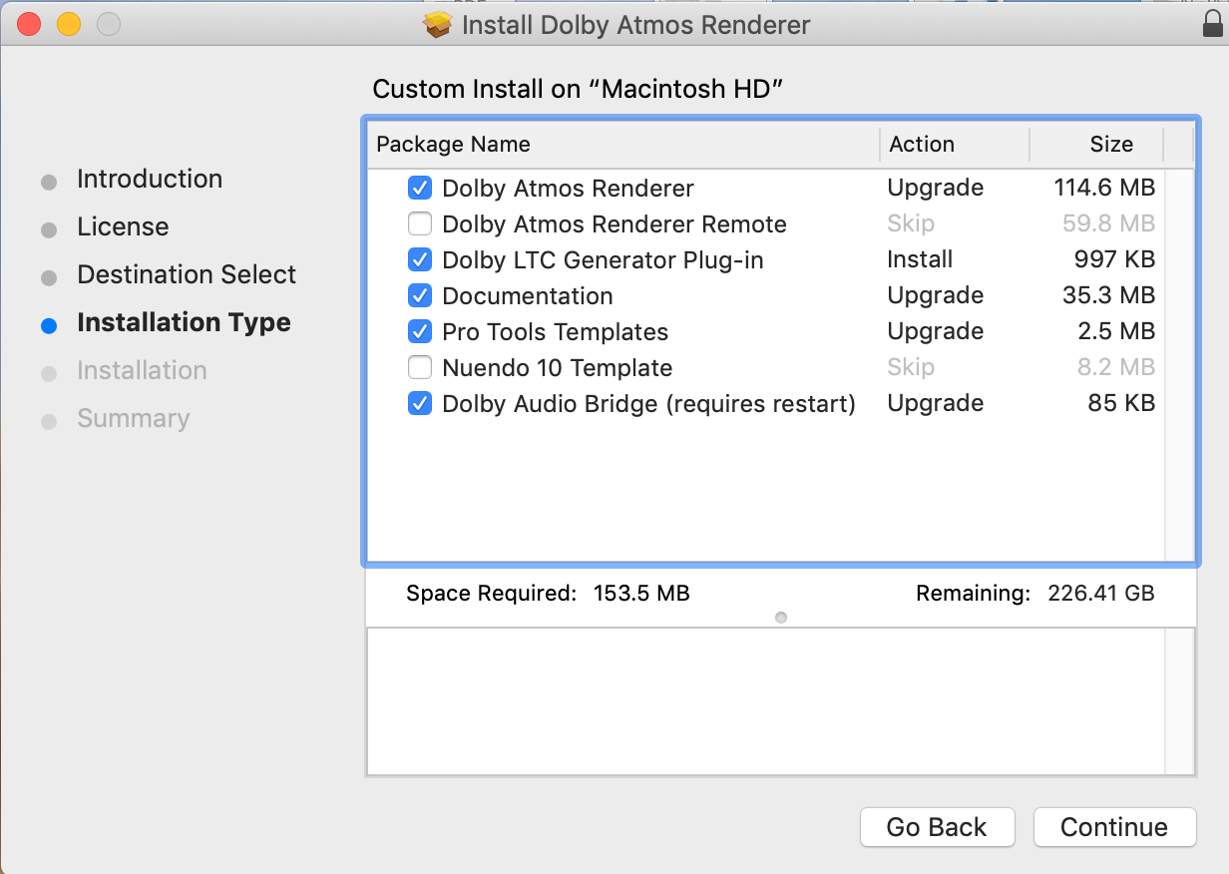
The Mac installer also installs the Dolby Renderer Send and Return plug-ins for use with the Dolby Atmos Renderer running on the same Mac as Pro Tools.
Optional Installer Components
The following section covers optional installer components that appear in the Dolby Atmos Installer package.
Dolby Atmos Renderer Remote
The Renderer Remote provides full remote control of the Dolby Atmos Renderer application running on a dedicated RMW. It is intended to be installed on either the DAW workstation (such as Pro Tools) or a separate PC or Mac to control a Windows or Mac-based RMW on the same network. The Renderer Remote is installed in the Applications/Dolby/Dolby Atmos Renderer folder on Mac, in both the root and user Applications folders.
On Windows the Renderer Remote is installed in the Program Files\Dolby\Dolby Atmos Renderer folder.
The Dolby Atmos Renderer Remote does not require a license and connects to the Renderer via ethernet using the IP address or host name of the RMW.
Dolby Audio Bridge
The Dolby Audio Bridge is used only with the Dolby Atmos Renderer installed on the same Mac as the DAW. It provides 130 channels of DAW output via Core Audio emulation to the Renderer inputs. To use the Dolby Audio Bridge, set the Dolby Audio Bridge as the Playback Engine in Pro Tools or the equivalent setting in other DAWs. The Dolby Audio Bridge is installed in the Applications/Dolby/Dolby Atmos Renderer folder. When the Dolby Atmos Renderer is launched on macOS 10.14 (Mojave) and later for the first time the Dolby Atmos Renderer must be given access to the Microphone for the Dolby Audio Bridge to function. A dialog box will display upon first launch prompting access to the Microphone. Note that if Renderer application is denied microphone access on the first launch, this can be fixed by entering “tccutil reset Microphone” in Terminal.
Dolby LTC Generator Plug-in
The Dolby LTC Generator plug-in v2.0 is an AAX plug-in for use with Pro Tools.
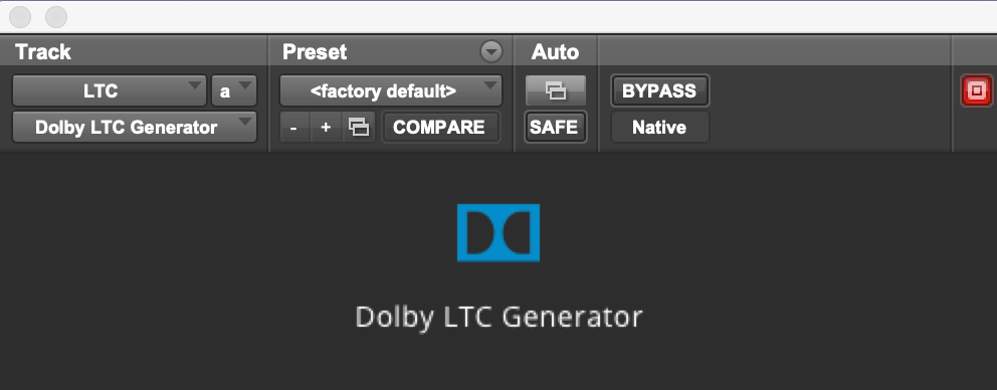
It is designed to be inserted on an audio track and assigned to a dedicated output to provide LTC for synchronization to the Dolby Atmos Renderer running on the same Mac as the DAW. In order to preserve all 128 channels of audio for Beds and Objects, LTC is typically routed to output 129 or 130. If the LTC Generator plug-in is used with the Dolby Atmos Renderer running externally on an RMW, output 128 is generally used and that Renderer input will be unavailable for program audio.
The plug-in generates LTC at the same frame rate as the Pro Tools session, following the session position and transport. No user interaction is required. It can be used with the Dolby Atmos Renderer on an external workstation as well. The Dolby LTC Generator plug-in is installed in the /Library/Application Support/Avid/Audio/Plug-ins folder in both the root and user Applications folders.
Pro Tools Templates
Four Pro Tools templates (.ptxt files) can be installed as a group. These are installed in the /Documents/Pro Tools/Session Templates folder and are accessible from Pro Tools in the Dolby Atmos Production Suite Template group, as shown below.
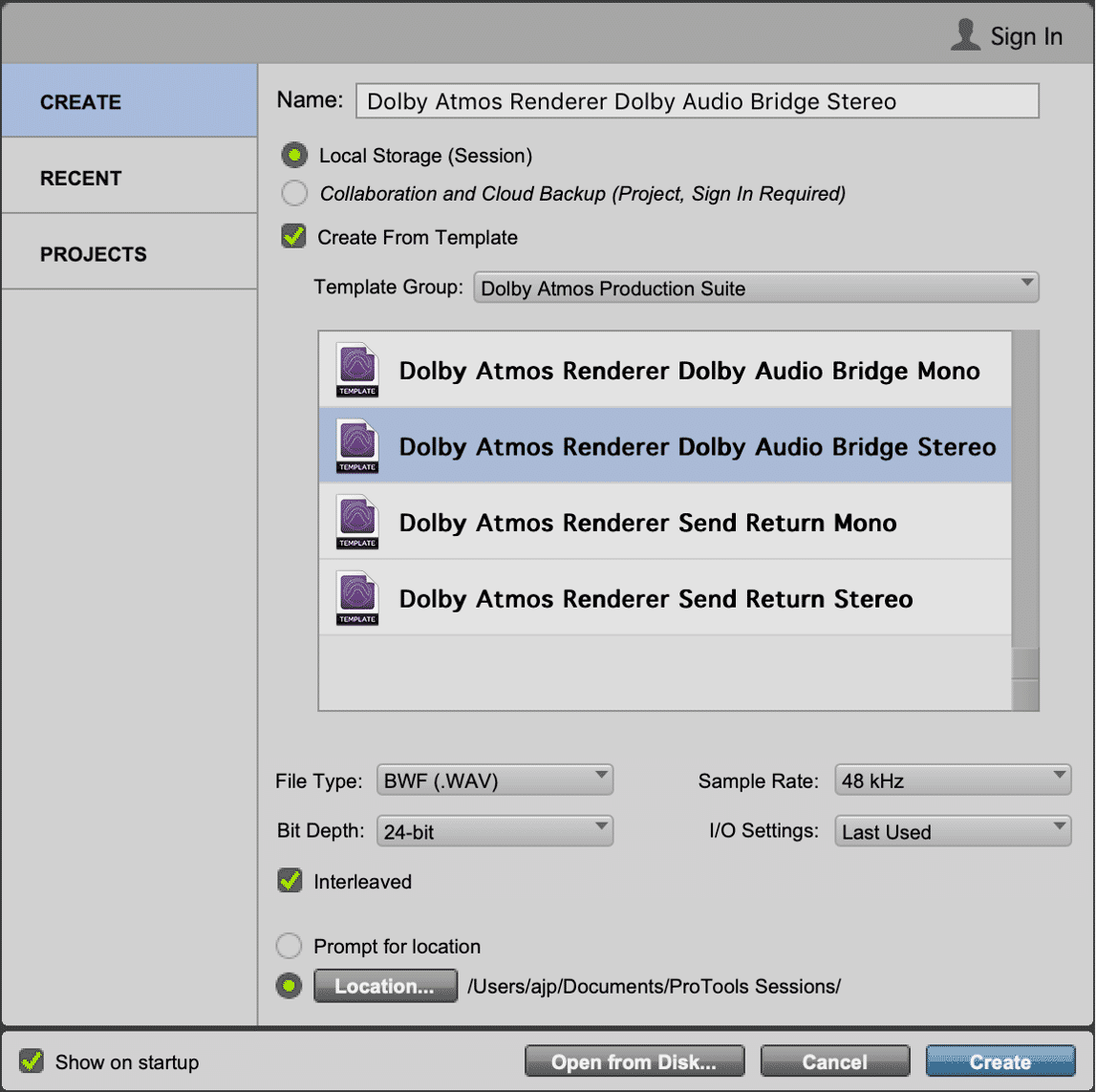
Two templates are dedicated for use with the Dolby Atmos Renderer running on the same Mac as the DAW:
- Dolby Atmos Renderer Send Return Mono.ptxt
- Dolby Atmos Renderer Send Return Stereo.ptxt*
The Dolby Atmos Renderer Send and Return plug-ins can only be used with Pro Tools. Using the Renderer Send Return templates requires the Renderer preferences driver selection to be set to Send/Return plug-ins.
The other two templates can be used with either the Dolby Audio Bridge and the Renderer on the same Mac as the DAW, or with the Renderer running on a dedicated RMW. On Pro Tools, the Playback Engine needs to be switched between the Dolby Audio Bridge and HDX, as appropriate.
- Dolby Atmos Renderer Dolby Audio Bridge Mono.ptxt
- Dolby Atmos Renderer Dolby Audio Bridge Stereo.ptxt
In actual practice, most sessions use a combination of stereo and mono Object tracks. Since the stereo template has stereo outputs/busses with mono subpaths, it is the most flexible and useful. The stereo templates are a good starting point for new sessions.
All four of these templates have the first 10 outputs configured to use a 7.1.2 Bed. The remaining outputs and tracks are assigned to Objects. The stereo templates use stereo outputs (with mono subpaths available), and all audio tracks that are assigned to Objects are stereo.
All four of these templates have the first 10 outputs configured to use a 7.1.2 Bed. The remaining outputs and tracks are assigned to Objects. The stereo templates use stereo outputs (with mono subpaths available), and all audio tracks that are assigned to Objects are stereo.
When the Pro Tools Dolby Audio Bridge templates are installed, corresponding I/O files (.pio) are installed in the Documents/Pro Tools/IO Settings folder to be used in conjunction with the templates.
Documentation
Documentation .pdf(s) are installed in the Applications/Dolby/Dolby Atmos Renderer folder on Mac and the Program Files\Dolby\Dolby Atmos Renderer folder on Windows. There is also contextual help in the Renderer application.
The Dolby Binaural Settings Plug-in
The Dolby Binaural Settings plug-in provides a way to control the Input Configuration and Binaural Render Mode settings of the Renderer remotely from within the DAW.
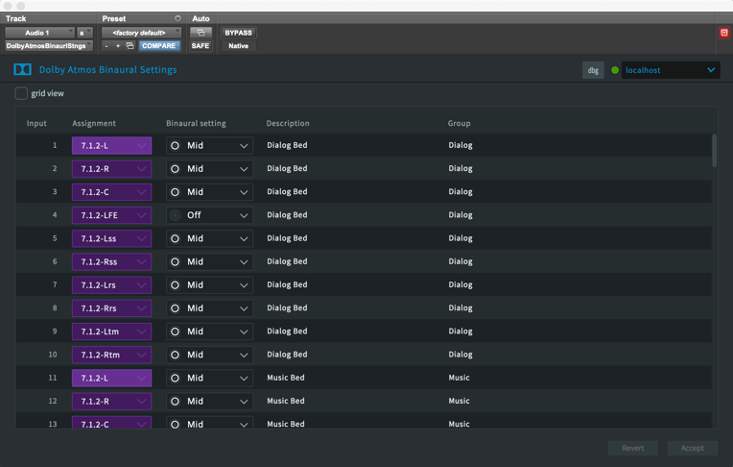
The Dolby Atmos Binaural Settings plug-in installers includes AAX, AU, and VST3 versions. The main Renderer, Input Configuration, and Binaural Render Mode windows provide “LED” indicators and status messages when these functions are being controlled by the plug-in.
Other Atmos Tools
While not included in the Installer, two other useful tools are available: the Dolby Atmos Music Panner plug-in and the Dolby Atmos Conversion Tool. These can be downloaded free of charge from developer.dolby.com
Dolby Atmos Production Tools
Dolby Developer website location
providing downloadsGO TO DOWNLOADS
The Dolby Atmos Music Panner
The Dolby Atmos Music Panner plug-in (shown below) is useful for positioning audio Objects in a Dolby Atmos Music mix when used in a supported DAW, such as Pro Tools, that is connected to the Dolby Atmos Renderer.
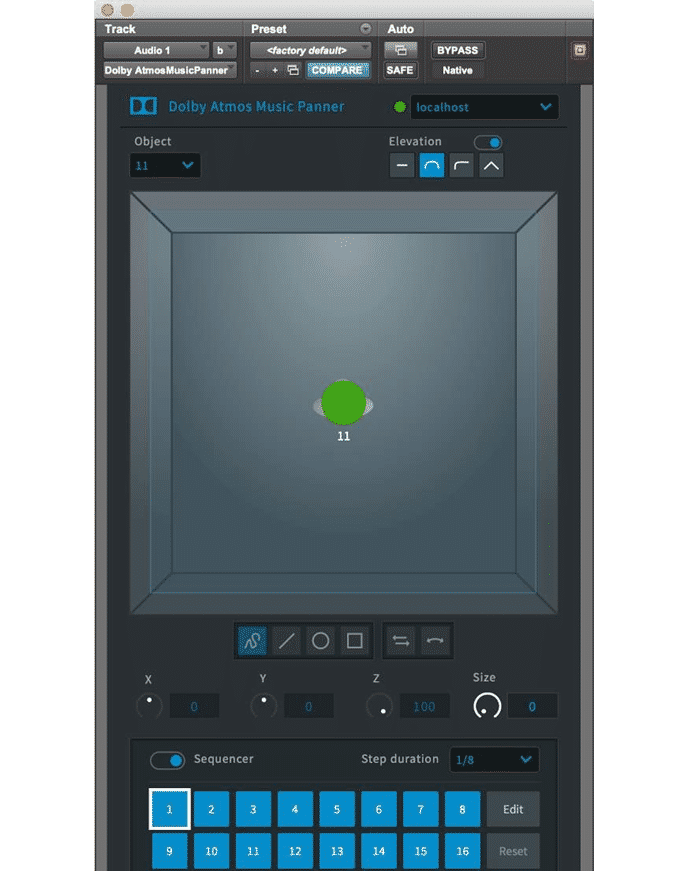
The Dolby Atmos Music Panner installer includes AAX, AU, and VST3 versions. This plug-in allows Object audio to be positioned in a three-dimensional audio field, the same way as the native panner in Pro Tools or other 3D immersive panning plug-ins in other DAWs. However, it also includes several unique panning patterns and a sequencer for synchronizing object movement to the DAW tempo.
Note that the Dolby Atmos Music Panner plug-in writes plug-in automation as opposed to panning automation. A Pro Tools template is provided when installing the Dolby Atmos Music Panner plug-In.
The Dolby Atmos Music Panner plug-in installer includes templates for Pro Tools (and a companion I/O settings file), Ableton Live, Logic, and Nuendo.
The Dolby Atmos Conversion Tool
The Dolby Atmos Conversion Tool is a standalone application for Windows, Mac, and Linux (command line only) for performing the following actions:
- Conversions between home Dolby Atmos Master file formats (.atmos, .wav, .mxf)
- Conversion between theatrical Dolby Atmos Master file formats (.rpl, .mxf) and home Dolby Atmos Master file formats
- Conversion of 96kHz Master Files to 48kHz
- Frame-rate conversions (with pitch/duration changes)
- Simple and complex edit and file-joining operations
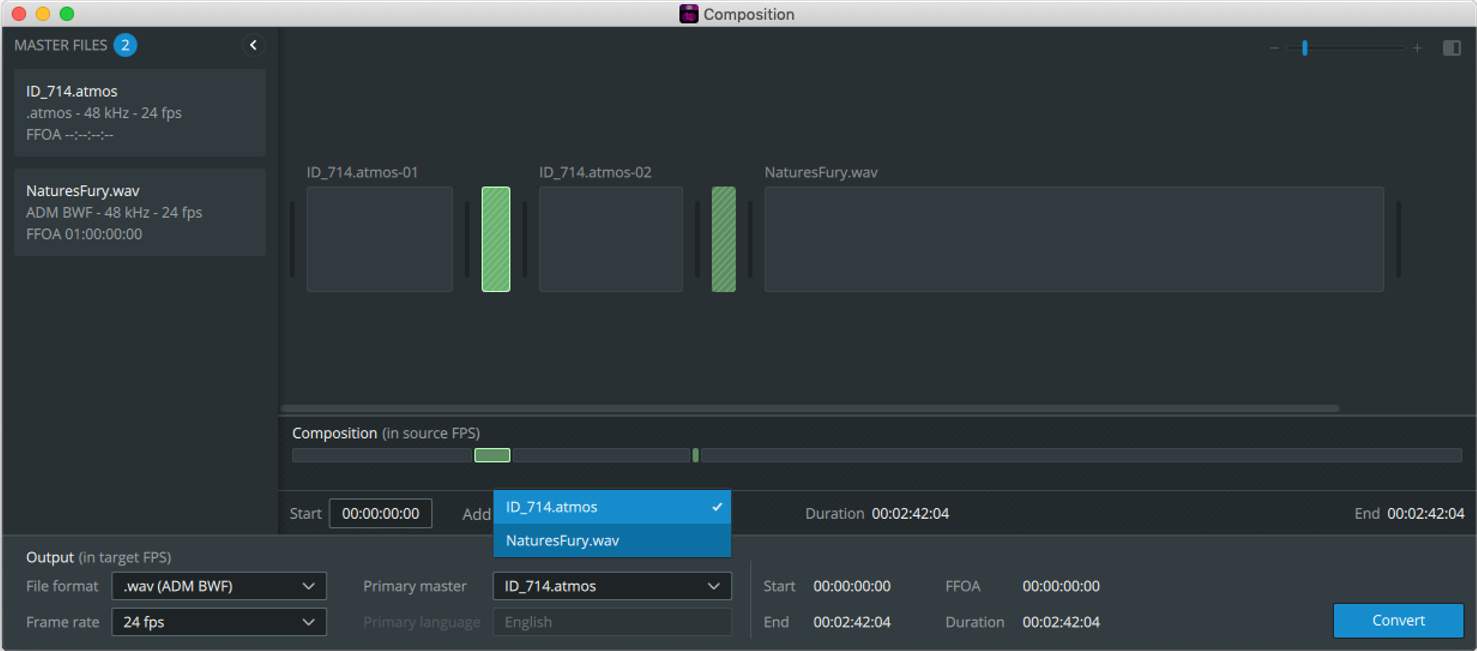
The Dolby Atmos Conversion Tool is a fully featured UI-driven application, but it is capable of opening the .xml files required to perform complex edits in previous versions.
 Ivy Music